Table of contents
- Overview
- Prerequisite
- Why a volume replica’s actual space usage can be greater than the spec size
- How to rely on existing volume settings to limit the space usage
- More tips for disk space usage efficiency
Overview
As some users know, a volume replica’s actual space usage can be greater than volume.spec.size.
This unrestricted space consumption may be unexpected and can lead to disk pressure, node crashes, or even data loss.
This blog introduces several approaches to help limit space usage.
Note: This blog provides a secondary solution. The primary solution is tracked here.
Prerequisite
Longhorn version: 1.6.0 or later.
The volume settings Snapshot Max Count and Snapshot Max Size mentioned in this article were introduced in version 1.6.0.
Why a volume replica’s actual space usage can be greater than the spec size
The main reason is the snapshot mechanism. Snapshots allow Longhorn to retain historical data in addition to the current data, which increases storage usage.
For example, consider a volume with a spec size of 5 GB. The user writes 5 GB of data1, creates a snapshot, then overwrites it with another 5 GB of data2. The replica will look like this:
+--------------+             +--------------+
|   snapshot   +------------>| volume head  |
|   data1(5G)  |             |  data2(5G)   |
+--------------+             +--------------+
In this case, Longhorn uses an additional 5 GB to store the snapshot data (data1), for a total of 10 GB.
Even though the original 5 GB appears overwritten, Longhorn retains it because snapshots are immutable, and users may need to revert to them if the current data becomes corrupted.
For more details about Longhorn’s snapshot mechanism, see the Longhorn documentation - Volumes.
How to rely on existing volume settings to limit the space usage
A volume replica consists of snapshots and one volume head. The maximum size of each snapshot or the volume head equals the volume spec size.
Therefore, after setting Snapshot Max Count or Snapshot Max Size, the maximum possible space usage of a volume replica becomes predictable — in other words, we are limiting the replica’s maximum space consumption.
Snapshot Max Count can be set globally for all volumes in Settings, or individually per volume in volume spec.
It limits maximum snapshot count for a volume. The value should be between 2 and 250.
Snapshot Max Size can only be set individually per volume in volume spec.
This setting limits maximum aggregate size of snapshots for a specific volume. You can specify “0” or any value larger than Volume.Spec.Size multiplied by 2. You must double the value of Volume.Spec.Size because Longhorn requires at least two snapshots to function properly.
For more details about these 2 settings, see the Longhorn documentation - Volumes Specific Settings.
When using snapshot max size, ideally:
- Without considering snapshot deletion/purge, the maximum space a replica can occupy is
<snapshot max size> + <volume spec size> * 1.<volume spec size> * 1accounts for the volume head. - If we include the temporary space used during deletion/purge, the maximum becomes
<snapshot max size> + <volume spec size> * 2.<volume spec size> * 2accounts for the volume head, plus the temporary space used during deletion/purge.
When using snapshot max count, ideally:
- Snapshot deletion/purge does not generate extra snapshots, so we can ignore it here.
The maximum space a replica can occupy is
(<snapshot max count> + 1) * <volume spec size>. The extra1accounts for the volume head.
Why snapshot deletion and purge will consume extra space
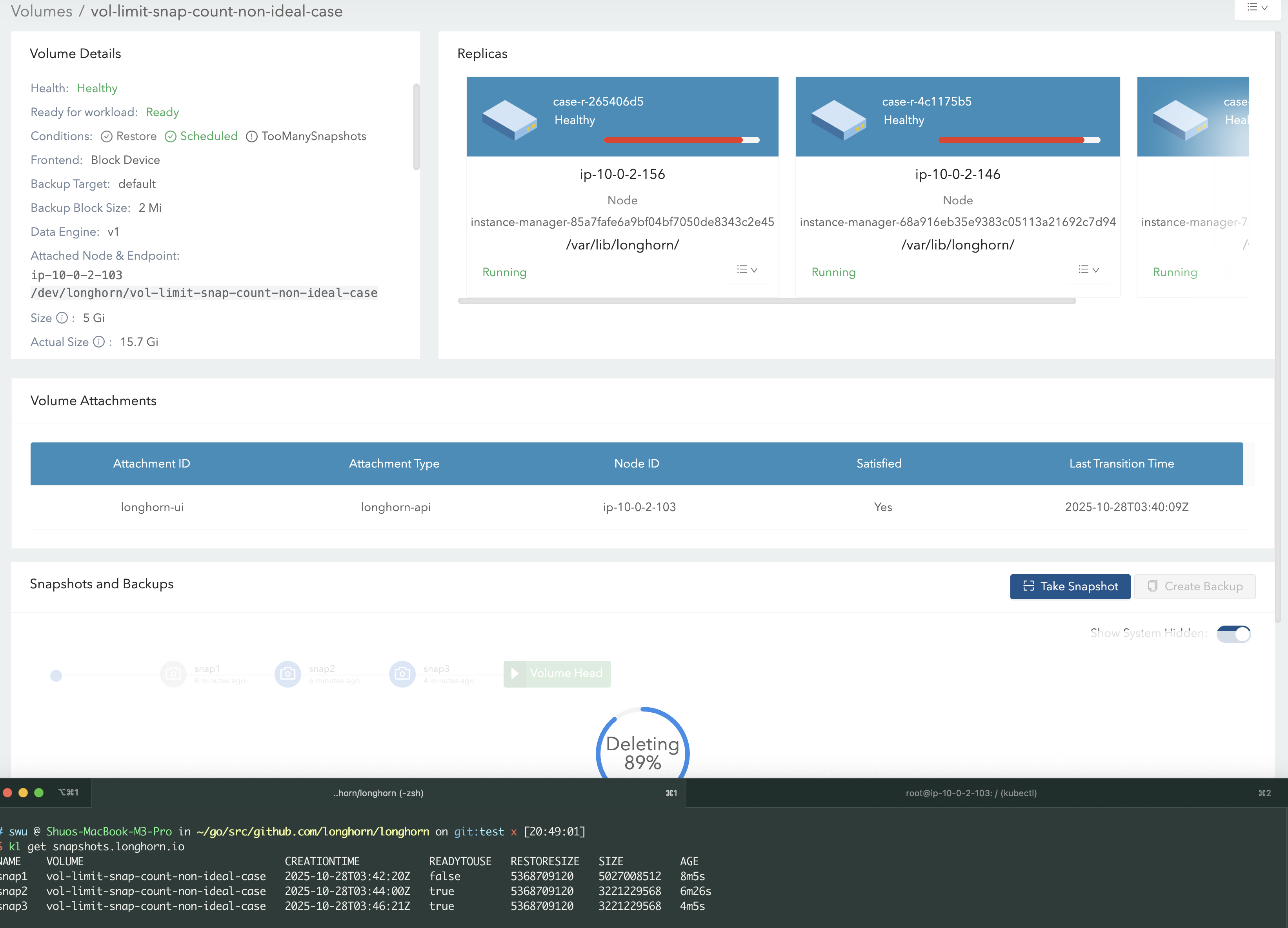
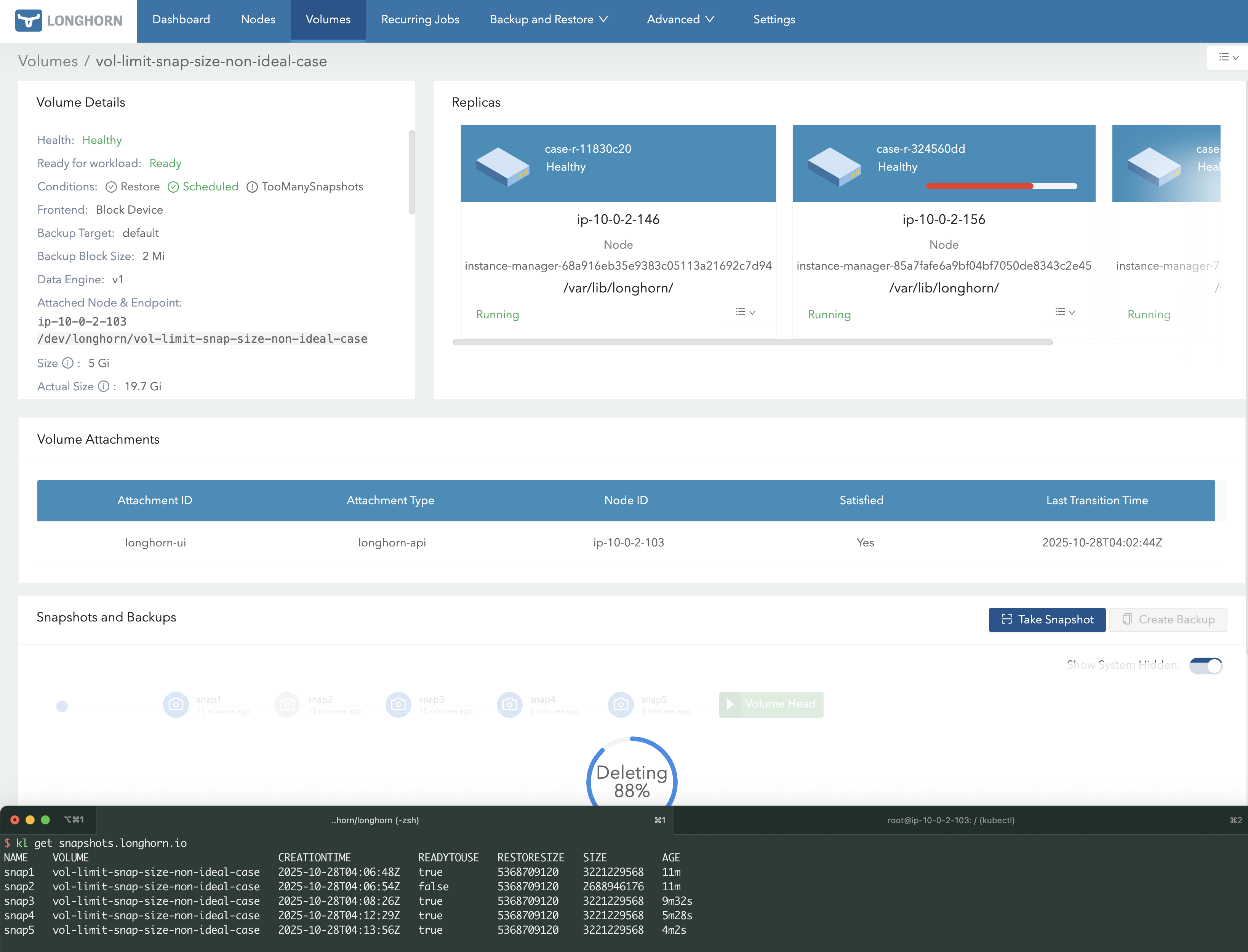
When deleting a snapshot, Longhorn merges the data from the deleting snapshot into its child snapshot (the next one in the chain). During this process, Longhorn temporarily copies the child snapshot’s data to the deleting snapshot, which causes temporary extra space usage.
Ideal Case
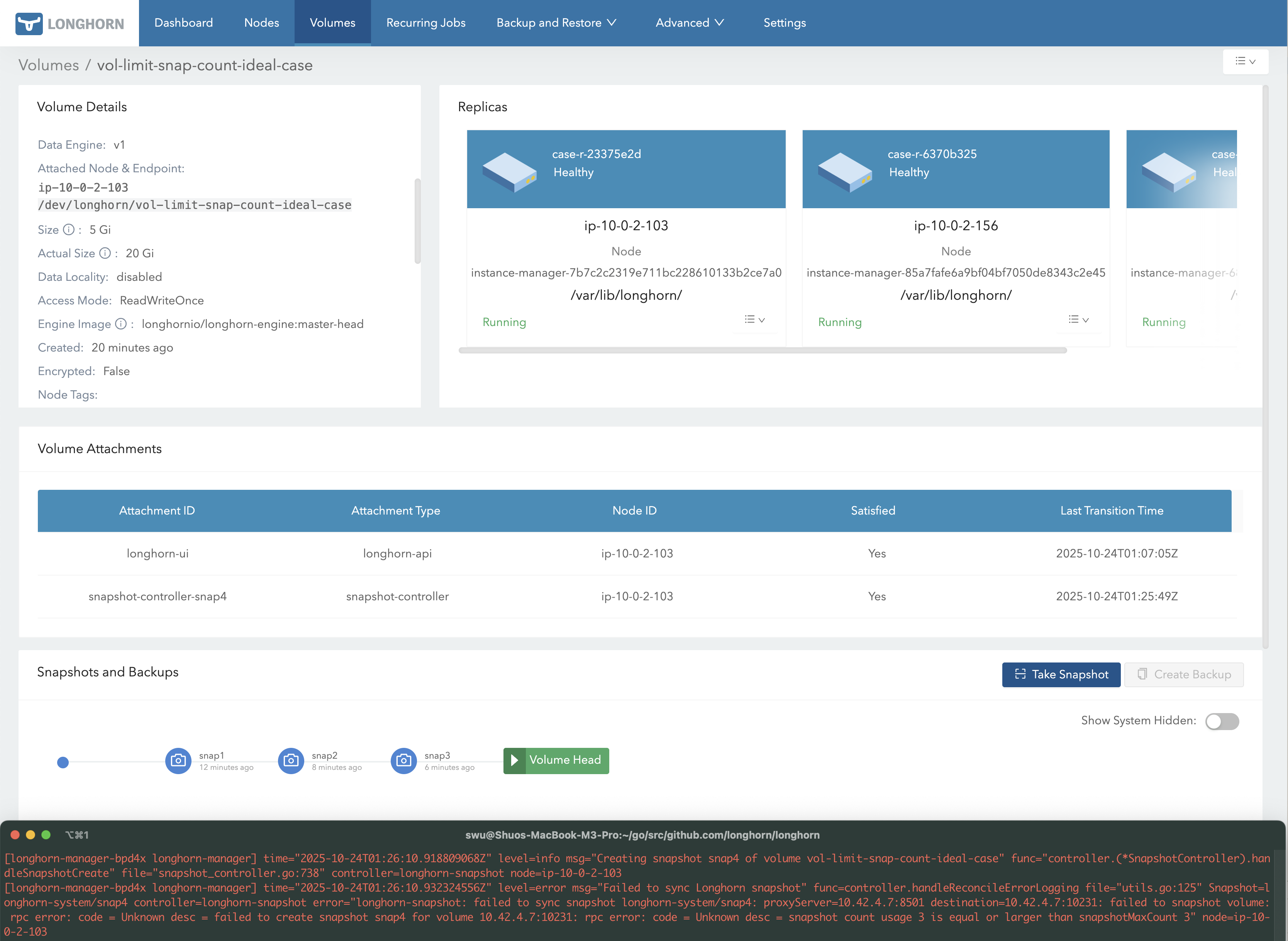
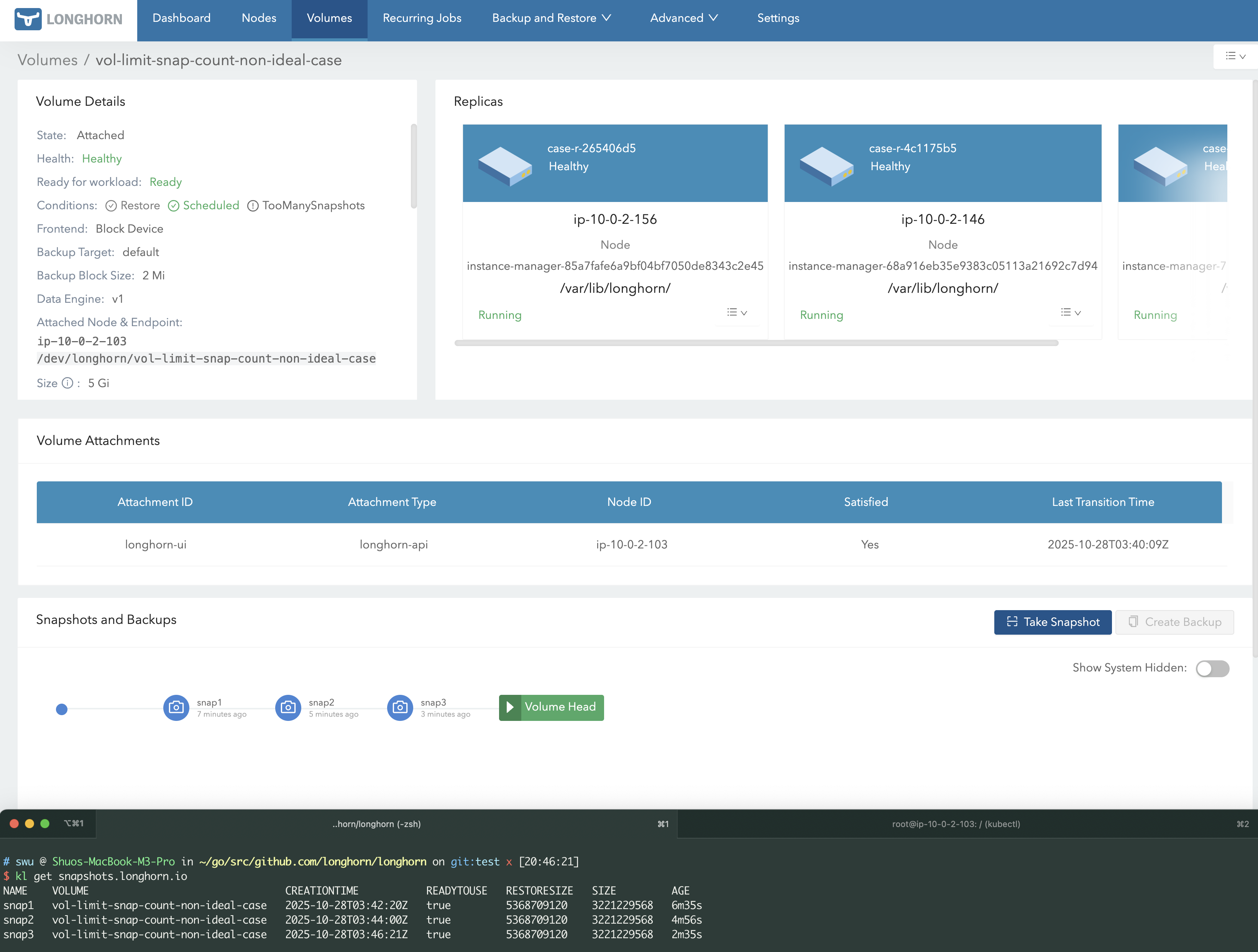
Let’s consider an example as the ideal case: Assume a volume with a 5 GB spec size. We want to strictly ensure (including during deletion/purge) that each replica does not use more than 23 GB.
If we choose snapshot max count for volume
- Set the value to
3. - In this example,
snap1,snap2, andsnap3are each 5 GB. - The volume head typically occupies 5 GB at most, so total usage per replica is 20 GB.
- Since each snapshot already reaches the spec size, deleting snapshots and purging does not require extra space.
Therefore, the maximum usage remains 20 GB.
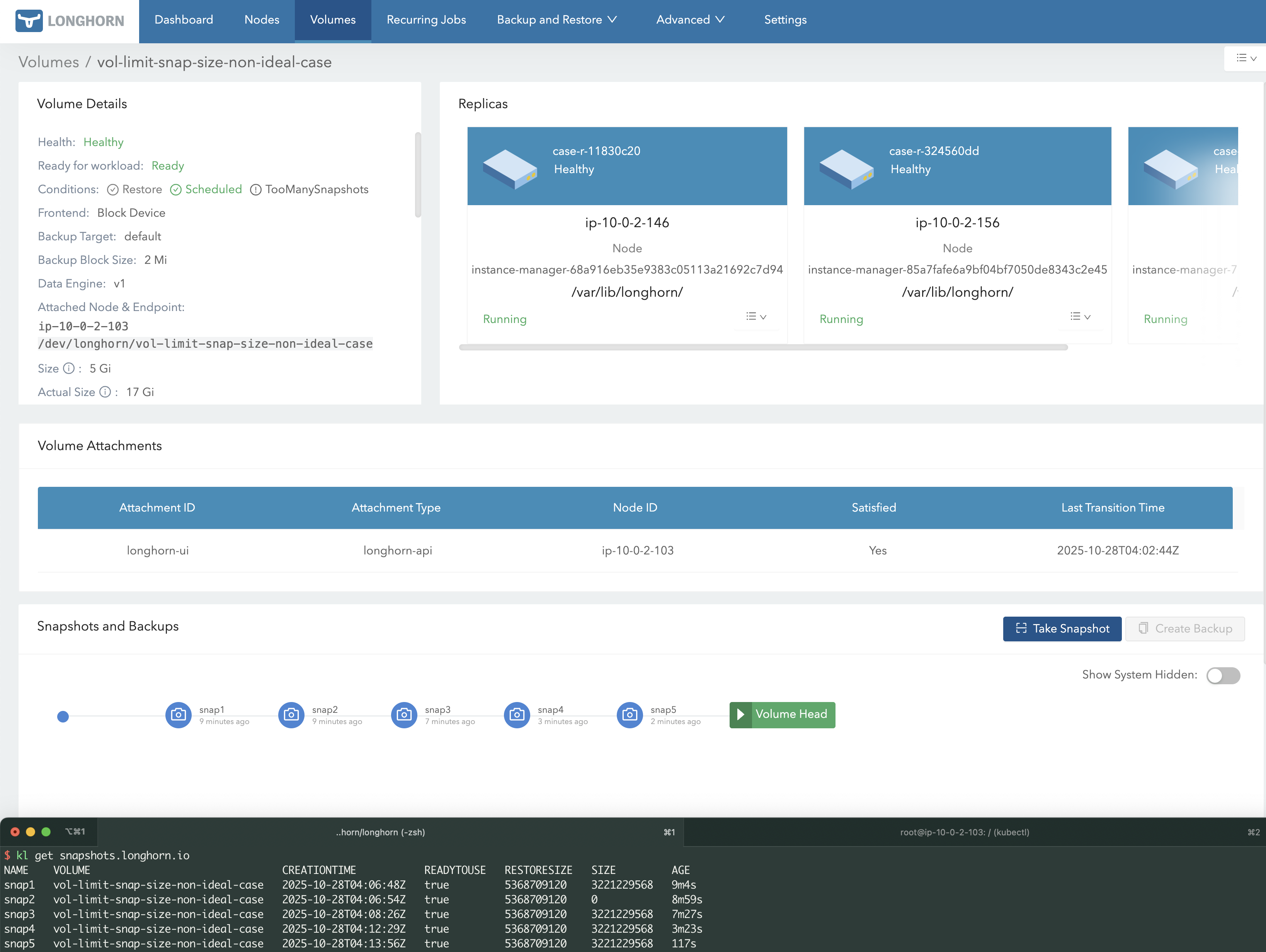
If we choose snapshot max size for volume
- Set the value to
13GB. - In this example:
snap1= 0 GB,snap2= 5 GB,snap3= 5 GB,snap4= 3 GB. - The volume head typically occupies 5 GB, so the total size per replica is 18 GB.
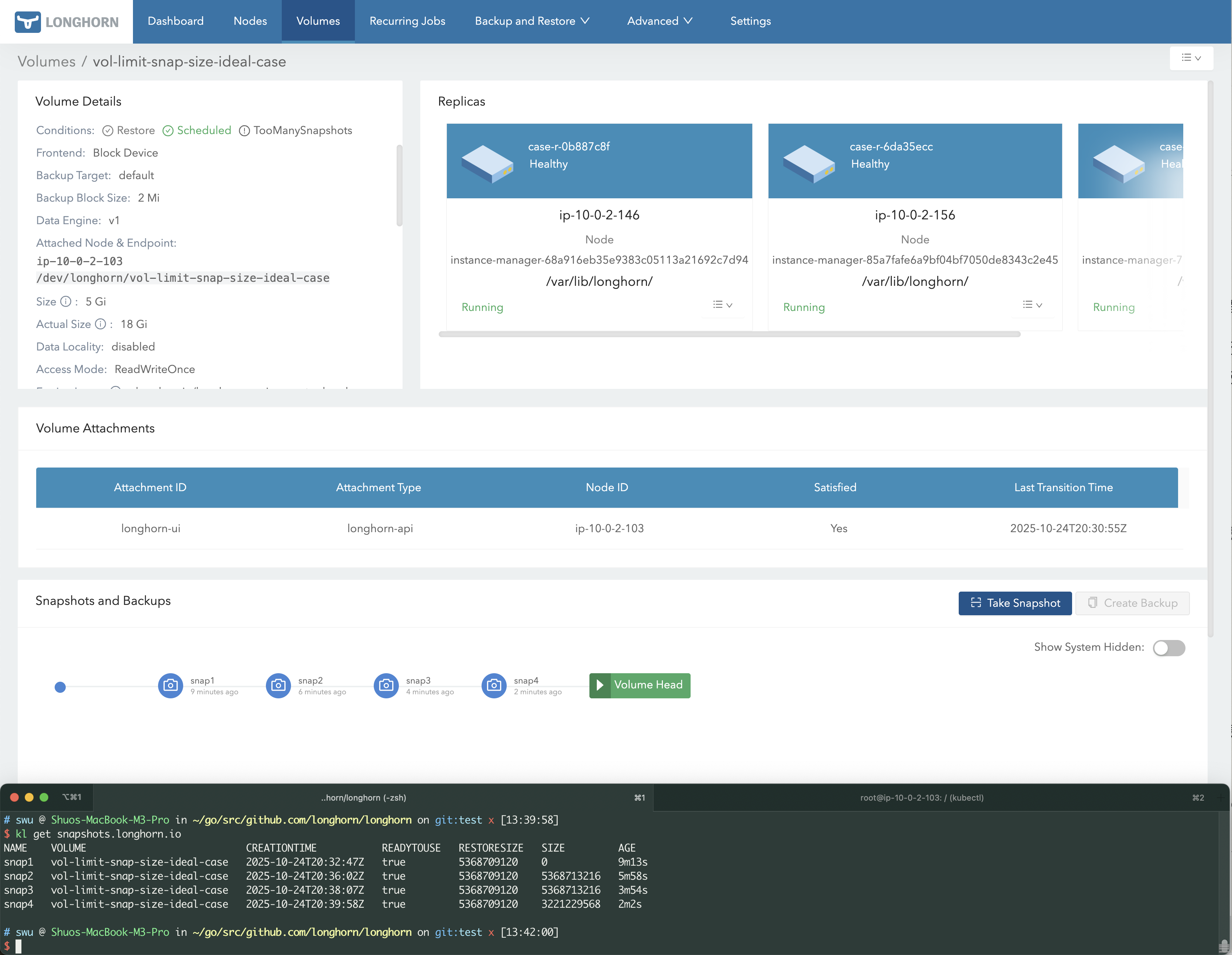
- When deleting
snap1and triggering a purge, an extra 5 GB is temporarily used to mergesnap1andsnap2, since Longhorn copiessnap2’s data into the deleting snap1. This is whysnap1shows ~5 GB instead of 0 GB in the screenshot. - At the peak of deletion/purge, the volume’s total size reaches its theoretical maximum of
13 GB + 5 GB + 5 GB = 23 GB. 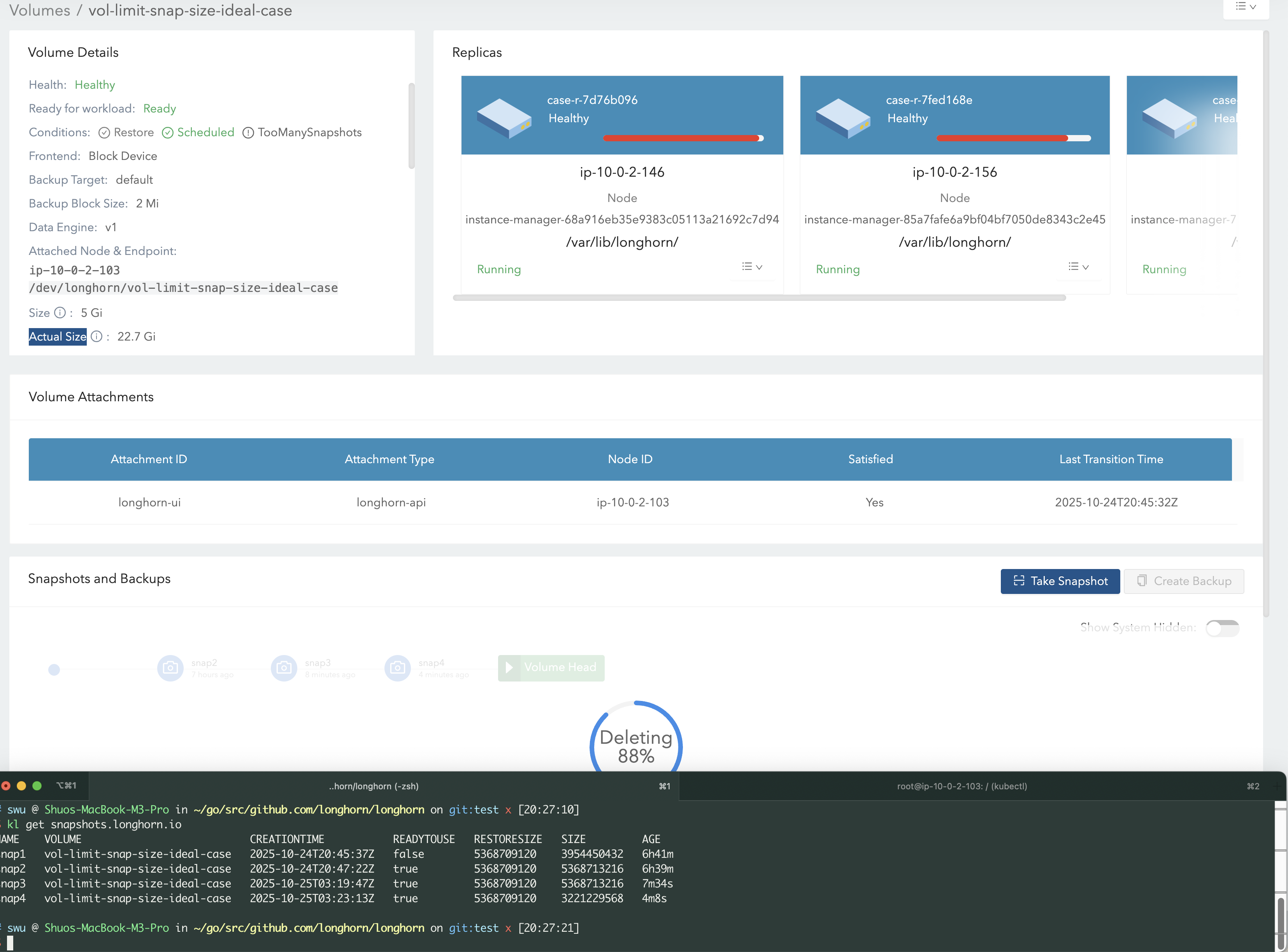
- Because the existing snapshots already total
13 GB, creating another snapshot will be rejected. 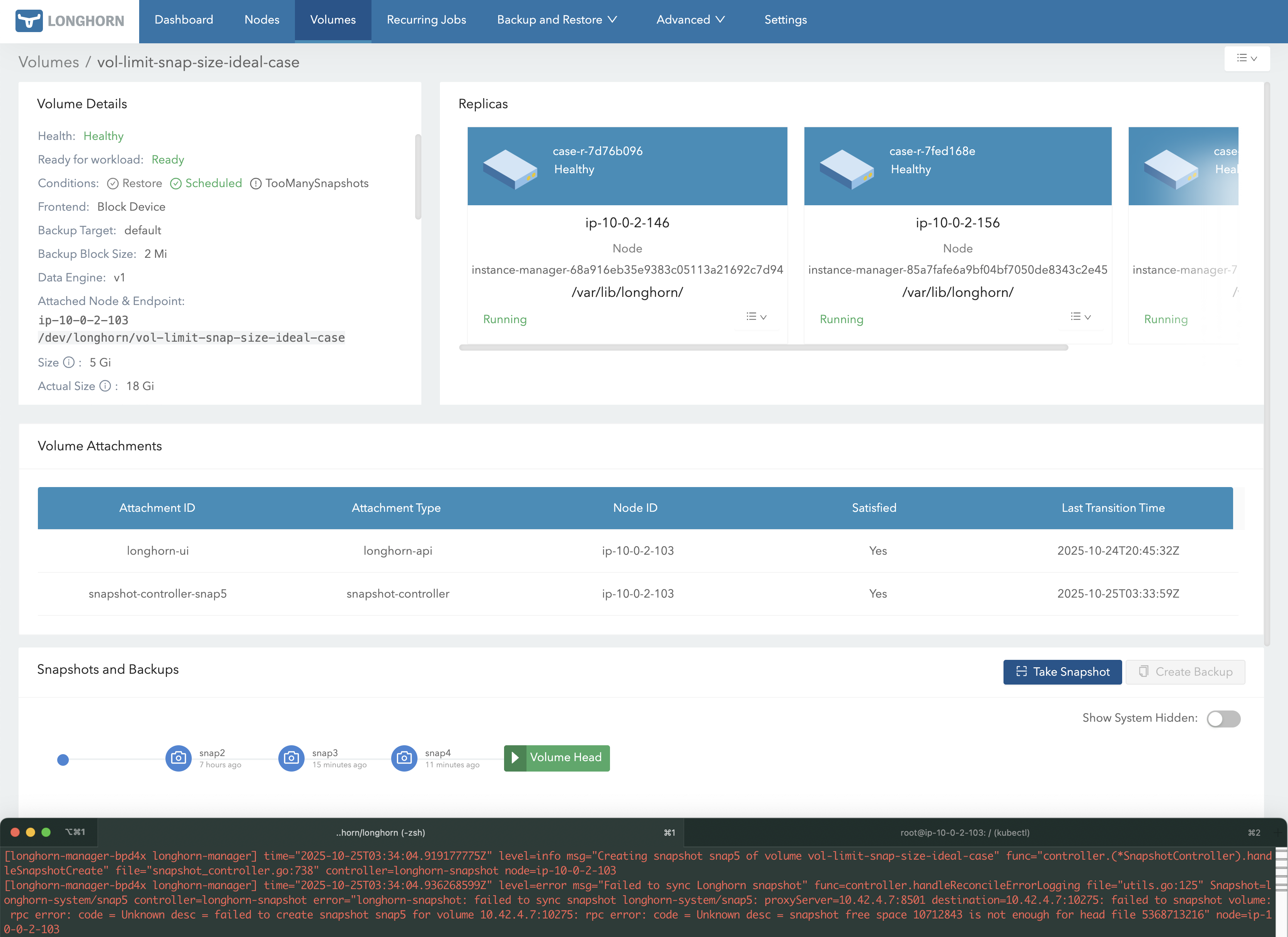
Limitations
These two settings cannot provide a fine-grained limit on space usage. Let’s see why.
In the ideal case above:
- With
snapshot max count = 3, the volume uses up to 20 GB — below the intended limit. - With
snapshot max size = 13 GB, the volume reaches 23 GB only if the total snapshot size exactly equals 13 GB — which rarely happens in real-world scenarios.
- With
In practice, snapshot sizes are unpredictable and rarely match the spec size. For example, if each snapshot actually uses 4 GB:
- Using
snapshot max count = 3: When deleting a random snapshot and triggering purge, the volume’s maximum usage is4 GB × 2 (remaining snapshots) + 5 GB (temporary purge space) + 5 GB (volume head) = 16 GB. - Using
snapshot max size = 13 GB: Suppose we create 5 snapshots — four at 3 GB each, and one empty (snap2). The total snapshot size is 12 GB. When deletingsnap2and triggering purge, the volume’s maximum usage is3 GB × 4 (snapshots) + 3 GB (temporary purge) + 5 GB (volume head) = 20 GB.
- Using
Therefore, the actual maximum space usage may be lower than the theoretical maximum, resulting in unused reserved space. These settings provide only a rough limit.
Additionally, when snapshot count or size reaches its limit, new snapshot creation will fail. In that case, you may need to:
- Stop any stuck snapshots.
- Clean up existing snapshots before creating new ones.
More tips for disk space usage efficiency
To further improve disk space efficiency, we recommend:
- Set up recurring
snapshot-cleanuporsnapshot-deletejobs. - Set up recurring
filesystem-trimjobs, and enableAllow Snapshots Removal During Trimif snapshots are less critical.Note: Issue #11670 affects filesystem trim behavior.
- Monitor space usage with metrics such as
longhorn_volume_actual_size_bytes. This can serve as an early warning and allow manual intervention before disks become full.
Recent posts
What's New in Longhorn 1.11Strengthen Longhorn with Automated End-to-End Tests
V2 Disk Size Aggregation
What's New in Longhorn 1.10
Limit Volume Replica Actual Space Usage
Backup Applications with Longhorn V2 Volumes using Velero
What's New in Longhorn 1.9
Longhorn 1.4.1 released
What's New in Longhorn 1.4
Security Advisories for Longhorn CVE-2021-36779 & CVE-2021-36780
Welcome Longhorn 1.2
Longhorn at KubeCon NA 2021
Announcing Longhorn v1.1.0
Longhorn at KubeCon NA 2020
Longhorn at KubeCon EU 2020
Performance and Scalability Report for Longhorn v1.0